

WhatsApp for your business.
A simple place to start.
Already using WhatsApp to speak to customers? WhatsApp Business gives you useful tools to present your business, organise enquiries and save time answering common questions.
Our free guide takes you through getting started. Along the way, we show where Words at Work can help with professional copy, branded visuals and connections to your website.
Words at Work is an independent business and is not affiliated with, endorsed by or sponsored by WhatsApp or Meta.
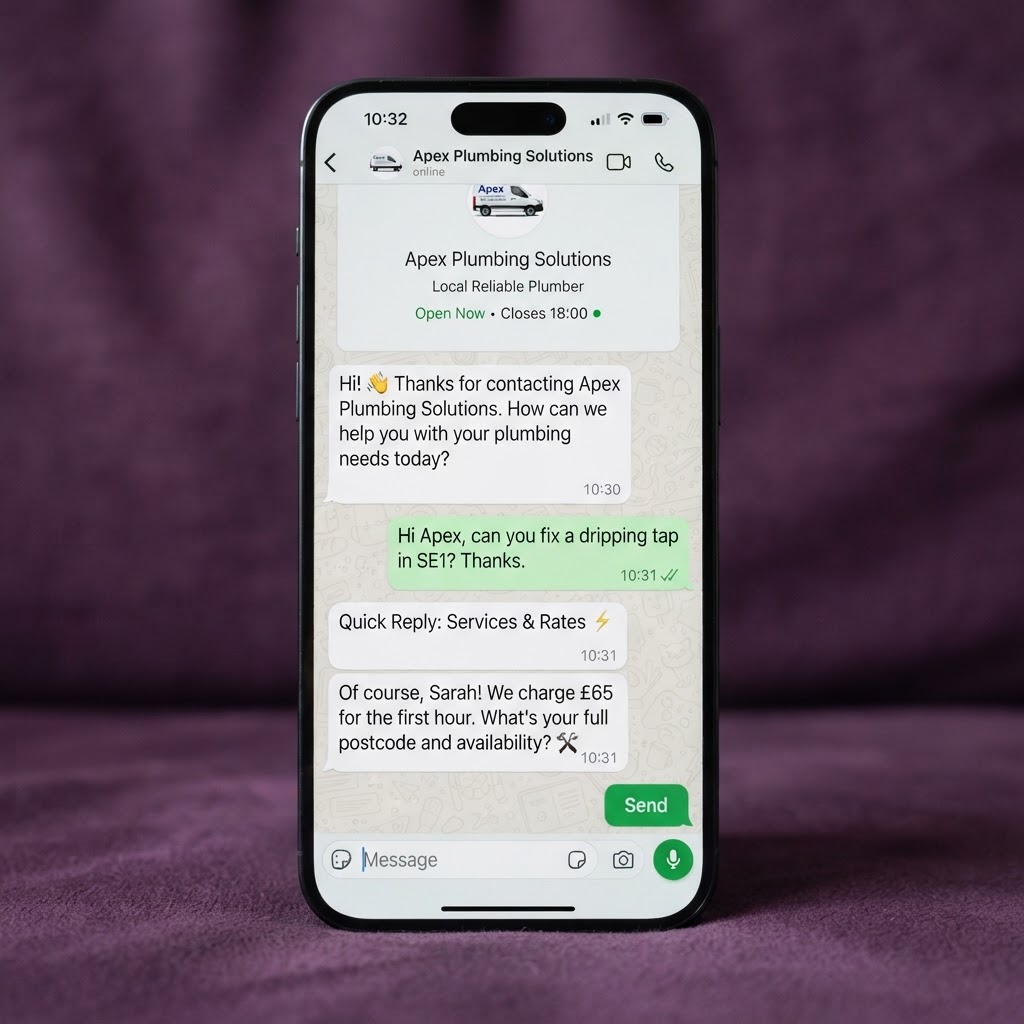
Using WhatsApp with customers? Choose the business app.
WhatsApp Business is the familiar messaging app with business tools added, so conversations with customers are easier to present and easier to manage.
- A business profile with opening hours and contact details.
- Greeting and away messages.
- Saved quick replies for common questions.
- Tools to organise customer conversations.
- A catalogue of products or services.
- QR codes and links that make it easy to start a conversation.
The WhatsApp Business app is free to download. Mobile service costs and optional paid features are separate. You do not need to buy a service from Words at Work to follow this guide.
The difference, plainly
Same app on the surface. Built for business underneath.
WhatsApp is the app most of us already message on every day. WhatsApp Business is the same familiar app with a business underneath it, made for talking to customers properly.
WhatsApp, the everyday app
Perfect for friends and family. For running a business, it quickly gets in the way:
- Built for personal chats: one phone, one inbox.
- Enquiries get mixed up with friends and family.
- No profile that says who you are or what you do.
- No away messages, labels, catalogue or desktop access.
WhatsApp Business
The same app your customers already know, set up to work for your business:
- A dedicated business number keeps work separate.
- A business profile: your name, hours, location, website.
- Quick replies and away messages answer for you.
- Labels, a catalogue and full desktop access for the team.
For your customers
And for your customers, it could hardly be easier. They already use WhatsApp every day, so there is nothing to download, no forms to fill in and no waiting on an email. They tap the link, message you the way they would message a friend, and your business answers properly, with the right information, even when you are on the job.
Free setup guide
Set up WhatsApp Business, step by step
Ten steps from choosing a number to inviting your first customers. Menus differ between iPhone, Android and app versions, so where a setting may move around we link to WhatsApp’s official help centre rather than guessing the exact path on your phone.
Step 1
Choose your business number
WhatsApp Business runs on its own number. We recommend a dedicated business number, so work conversations stay separate from your personal chats.
- 1Decide whether to use a separate number for the business, or to move an existing WhatsApp account you already use for work.
- 2A number cannot be active in ordinary WhatsApp and WhatsApp Business at the same time, so plan for the switch.
- 3If you are moving an existing account, read WhatsApp’s official migration and backup guidance before you start, and back up your chat history.
Tip: Do not cancel or change anything yet. Read the official guidance first so you know what transfers with you and what does not.
Official guidance: moving your account to WhatsApp Business
Where Words at Work can help
Unsure which number to use? We can advise and help arrange a low-cost mobile tariff if required.
Step 2
Download the app and register
WhatsApp Business is a free app, separate from ordinary WhatsApp. You register it with your chosen business number.
- 1Download the official WhatsApp Business app from the Apple App Store or the Google Play Store.
- 2Open the app and follow the registration prompts.
- 3Verify your number when asked: WhatsApp sends a code by text message or phone call, and you enter it yourself.
Tip: Never let anyone else enter the verification code for you. Keeping control of your account starts here.
Official guidance: about WhatsApp Business
Where Words at Work can help
Our guide helps you understand the process and prepare what you need.
Step 3
Secure your account
Once registered, take a couple of minutes to protect the account properly.
- 1Open Settings, then Account, and find the account security settings.
- 2Turn on two-step verification and choose a PIN or password you will remember.
- 3Add recovery details, such as an email address, where the app offers it.
Tip: Never share registration codes or account passwords with anyone, including someone claiming to be from WhatsApp.
Official guidance: two-step verification
Where Words at Work can help
We can explain the settings, while you keep control of your account and security details.
Step 4
Complete your business profile
Your profile is what customers see before they message you, so make it clear and complete.
- 1Add your business name and the category that best describes what you do.
- 2Add a logo or profile image, a short description and your contact details.
- 3Include opening hours, your website, an email address and, where appropriate, your business address.
Tip: Keep the description to two or three sentences. Customers read it in seconds.
Where Words at Work can help
We can write your business description and prepare a clear, professional profile image.
Step 5
Set your greeting and away messages
Greeting and away messages are saved texts the app sends for you: a greeting welcomes new chats after a gap, and an away message replies when you cannot answer straight away.
- 1Turn on the greeting message and make it welcoming and useful.
- 2Set an away message that sets realistic expectations, including your opening hours.
- 3Write both in the voice of your business, and keep them short.
Greeting
Hello, thanks for contacting [Business name]. How can we help?
Away
Thanks for your message. We’re currently closed and will reply during our opening hours: [days and times].
Tip: These messages send the same saved text every time. They save typing, but they do not answer individual customer questions.
Where Words at Work can help
We can write messages that sound like your business and help customers understand what happens next.
Step 6
Create quick replies
Quick replies are saved responses you select and send when a familiar question arrives, instead of typing the same answer again.
- 1Open the quick replies settings and save answers to the questions you are asked most.
- 2Start with services, prices, opening hours, quotations and bookings.
- 3Keep each reply short, and review them now and then so they stay accurate.
Tip: Number or label your quick replies so they are easy to find mid-conversation.
Where Words at Work can help
We can create a bespoke set of useful replies, ready for you to add to the app.
Step 7
Organise customer conversations
The app includes tools for keeping track of enquiries, so conversations do not get lost. Menus differ between iPhone, Android and app versions, so use the current official guidance for the exact tools on your phone.
- 1Explore the chat organisation tools in the app and pick the ones that suit the way you work.
- 2Agree a simple workflow, such as: New enquiry, Quote sent, Awaiting reply, Booked, Completed.
- 3Remember that these categories are updated by you. Nothing moves on its own.
Where Words at Work can help
We can help you create a straightforward enquiry and follow-up routine.
Step 8
Add your products or services
A catalogue shows your products or services inside the app, each with a title, an image, a description and, where appropriate, a price.
- 1Open the catalogue tool and create your first entries.
- 2Start with a few key services rather than everything at once.
- 3Use clear images and short descriptions customers can read at a glance.
Tip: A catalogue helps customers browse. It does not create an online checkout or take payment on its own.
Official guidance: creating a catalogue
Where Words at Work can help
We can write catalogue descriptions and create branded graphics or short videos to explain your services.
Step 9
Connect your computer
Linked devices let you use WhatsApp on WhatsApp Web or the desktop app alongside your phone, so the whole team can answer from a computer.
- 1In the app, open the linked devices setting and scan the code shown at web.whatsapp.com or in the desktop app.
- 2Check WhatsApp’s official guidance for the current number of devices you can link.
- 3Agree who answers messages and who checks for outstanding enquiries at the end of the day.
Official guidance: linked devices
Where Words at Work can help
We can help you plan a simple approach to handling customer conversations across your team.
Step 10
Make it easy for customers to contact you
WhatsApp Business gives you a QR code and a chat link. A customer scans or taps, and the conversation starts.
- 1Find your QR code and short link in the app’s tools.
- 2Test both from another phone before you publish them.
- 3Add them to your website, email signatures, printed materials and social profiles.
Official guidance: QR code and short link
Where Words at Work can help
We can add WhatsApp buttons to your website, create branded QR graphics and prepare content introducing your new contact option.
That is the whole setup. When it is done, your business is easy to reach and easy to talk to on WhatsApp.
See optional helpProfessional content, ready for your WhatsApp Business
Once your account is ready, give it content that looks and sounds like your business. Choose from professionally written messages, branded graphics and presenter-led videos — supplied ready for you to add and share.
We create it. You add it and share it.
Customers set up and manage their own WhatsApp Business accounts. Words at Work supplies the content, and each order includes straightforward instructions explaining what goes where.
Business Essentials
£79 + VAT
Clear, consistent wording for everyday customer conversations.
- One business profile description.
- One greeting message.
- One away message.
- Up to 10 bespoke quick replies.
- A simple guide showing where to add each piece of copy.
Suitable for businesses that want professional wording for their account and common customer questions.
Enquire about Business EssentialsMeet Our Business
£99 + VAT
Introduce your business and give customers a reason to choose you.
- Three branded static graphics.
- Three accompanying messages.
- Content covering your business, your main services and your key benefits.
- Guidance on adding or sharing the finished content.
Catalogue Starter
£149 + VAT
Present your products or services clearly.
- Copy for up to five catalogue entries.
- Five matching branded static graphics.
- Clear titles and descriptions.
- Customer-supplied prices and product or service information.
- Guidance on adding the content to the catalogue.
Customers supply any required product photographs. New photography is not included.
Enquire about Catalogue StarterSpecial Offer
£99 + VAT
A coordinated set of content for one promotion.
- Three branded static graphics.
- Three accompanying messages.
- A launch message, a reminder and a final-call message.
- Consistent wording for the offer, deadline and call to action.
Only use deadlines, availability claims and offer terms confirmed by the customer.
Enquire about Special OfferVideo Spotlight
Ask for a quote
Price confirmed following enquiry
Explain a service or offer with a short presenter-led video.
- One finished presenter-led video.
- One cover graphic.
- One accompanying WhatsApp message.
- An agreed duration, format and script before production.
Need content for something else?
Additional options are available by enquiry. For example, a florist’s Valentine’s campaign, a heating company’s autumn servicing offer or a brewery’s new-product launch. These are examples of what can be created, not completed customer projects.
| Option | Included content | Price excluding VAT |
|---|---|---|
| Service Spotlight | Five branded graphics and five messages explaining different services or benefits | £149 + VAT |
| Seasonal Campaign | Four branded graphics and four messages around one seasonal campaign | £129 + VAT |
| Frequently Asked Questions | 10 written quick replies and five graphics explaining selected answers | £129 + VAT |
| Booking & Aftercare | Eight reusable customer-service messages and two branded graphics | £99 + VAT |
| WhatsApp Status Content | Eight vertical static graphics with short accompanying captions | £179 + VAT |
| Customer Comeback | Three messages and three matching graphics encouraging previous customers to return | £99 + VAT |
How it works
- 1
Choose your pack
Tell us what you would like to achieve.
- 2
Send your brief
Provide your business details, logo, brand preferences, relevant images and accurate service or offer information.
- 3
Review your content
We prepare the agreed work for approval.
- 4
Add it and share it
Receive the finished files and clear instructions for using them in WhatsApp Business.
Scope and delivery
- Each pack covers one business and one agreed brief.
- One consolidated round of amendments is included.
- Additional content or changes outside the agreed brief are quoted separately.
- Customers approve the accuracy of the information they supply, including any offer terms, deadlines or claims.
Common questions
Want help making it look and sound like your business?
Follow the free guide to get started, then speak to us if you would like help with your messages, catalogue content, branded graphics or website.
Tell us what you need